Your WordPress site suddenly shows “fix 500 internal server error WordPress” and you’re panic-searching for a fix? You’re not alone. This generic server-side error means something went wrong on your hosting server, but WordPress doesn’t tell you exactly what. The good news? Most 500 errors are fixable in under 30 minutes without touching code.
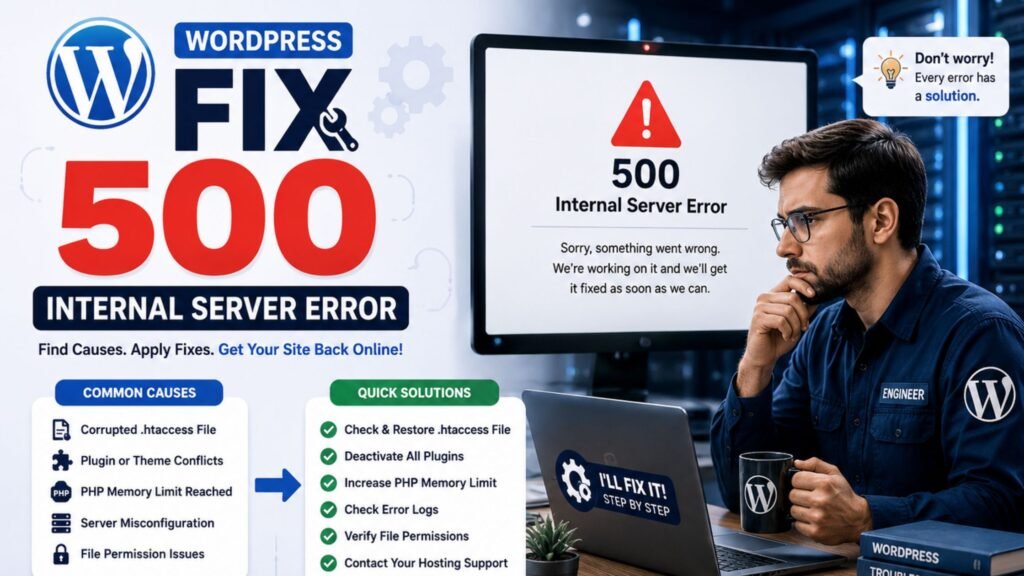
What Is the 500 Internal Server Error?
The HTTP 500 Internal Server Error is a blank-screen killer that stops visitors from accessing your site. Unlike 404 errors (page not found), a 500 error indicates a server-side problem—usually caused by corrupted files, plugin conflicts, theme issues, or insufficient server resources.
Unlike browser errors you can fix by refreshing, 500 errors require server-side troubleshooting. Let’s walk through 8 proven fixes, starting with the easiest.
8 Step-by-Step Fixes for WordPress 500 Error
1 – Refresh the Page and Clear Browser Cache
Sometimes the error is temporary. Wait 2–5 minutes, then
- Hard refresh your browser (Ctrl + F5 on Windows, Cmd + Shift + R on Mac)
- Try opening your site in an incognito/private window
- Clear browser cache and cookies
If the page loads, it was a temporary glitch. If not, move to step 2.
2 – Deactivate All Plugins (Most Common Cause)
Plugin conflicts cause ~60% of WordPress 500 errors.
If you can access WordPress admin:
- Go to Plugins → Installed Plugins
- Select all plugins → Bulk Actions → Deactivate
- Reload your site
- If it works, reactivate plugins one by one, testing after each to find the culprit
If you CAN’T access admin (use FTP/cPanel):
- Log into your hosting File Manager or FTP client
- Navigate to /wp-content/
- Rename the plugins folder to plugins.old
- Reload your site – if it works, a plugin caused the error
- Rename it back to plugins and reactivate individually via WordPress dashboard
3 – Fix or Regenerate the .htaccess File
A corrupted .htaccess file is the #2 cause of 500 errors.
To rename the file:
- access File Manager via cPanel or FTP
- Enable Show Hidden Files (dotfiles) in settings
- Locate .htaccess in your WordPress root directory
- Rename it to .htaccess.bak
- Reload your site
To regenerate it:
- Go to Settings → Permalinks in WordPress
- Select Plain → Save Changes
- Re-select your preferred permalink structure → Save again
- If the site loads, your .htaccess was corrupted.
4 – Increase PHP Memory Limit
Insufficient memory crashes WordPress. Increase it to 64M or 256M.
Method 1 – Edit wp-config.php:
- Open /wp-config.php in File Manager
- Add this line before /* That’s all, stop editing! */:
define(‘WP_MEMORY_LIMIT’, ‘256M’);
Save and reload
Method 2 – Edit php.ini:
- In cPanel, find PHP Configuration or php.ini
- Set memory_limit = 256M
- Save changes
5 – Check File Permissions
Incorrect permissions break WordPress. Correct settings are:
| Item | Permission |
|---|---|
| Folders | 755 |
| Files | 644 |
| wp-config.php | 400 or 440 |
To Fix
- Open File Manager/FTP
- Right-click folders → Change Permissions → Set to 755
- Right-click files → Set to 644
Never set directories to 777 (security risk).
6 – Re-upload WordPress Core Files
Corrupted wp-admin or wp-includes folders cause 500 errors.
Steps:
- Download fresh WordPress from wordpress.org
- Extract the ZIP
- Via FTP, upload only wp-admin and wp-includes folders to your root directory (overwrite existing)
- DO NOT overwrite wp-content or wp-config.php (you’ll lose content)
- Reload your site.
7 – Switch to a Default Theme
Theme conflicts can trigger 500 errors.
- Via FTP, go to /wp-content/themes/
- Rename your active theme folder (e.g., my-theme → my-theme.old)
- WordPress will fallback to a default theme (Twenty Twenty-Four)
- If site loads, your theme is the problem
8 – Check Error Logs and Contact Hosting
If none of the above work, check error logs for the exact cause:
In cPanel:
- Go to Metrics → Errors or Error Log
- Look for fatal PHP errors mentioning specific files
Common log clues:
- Fatal error in /wp-content/plugins/…” → Plugin issue
- “Memory exhausted” → Increase memory limit
- “Permission denied” → Fix file permissions
Still stuck? Contact your hosting support with the error log—they may have server-side issues.
Prevention Tips
- Always backup: before updating plugins/themes (use UpdraftPlus or hosting backups)
- Update gradually: Test on staging site first
- Use lightweight plugins: Fewer plugins = fewer conflicts
- Choose quality hosting: Cheap hosts often have resource limits that trigger 500 errors
Quick Troubleshooting Checklist
✅ Refresh page & clear cache
✅ Deactivate all plugins
✅ Fix/regenerate .htaccess
✅ Increase PHP memory to 256M
✅ Check file permissions (755/644)
✅ Re-upload core files
✅ Switch to default theme
✅ Check error logs
Final Thoughts
The 500 Internal Server Error is scary but almost always fixable. Start with plugins and .htaccess—these solve 80% of cases. If you’ve tried all 8 steps and still see errors, your hosting provider needs to investigate server-side issues.
Remember: Always backup before making changes. With these steps, you’ll have your WordPress site back online quickly and safely.
Having trouble implementing any step? Comment below with your specific error log message for targeted help.
FAQ: WordPress 500 Internal Server Error
Q1: How long does it take to fix a 500 error in WordPress?
Most 500 errors are fixed within 10–30 minutes if you follow the steps in order. Plugin conflicts and .htaccess issues (the two most common causes) usually take under 10 minutes to resolve. Complex server-side issues may require hosting support and could take a few hours.
Q2: Will fixing the 500 error delete my content or posts?
No. The troubleshooting steps described (deactivating plugins, fixing .htaccess, increasing memory, checking permissions) will not delete your posts, pages, media, or database content. The only exception is if you accidentally overwrite the wp-content folder when re-uploading core files—always follow the guide carefully to avoid this.
Pro tip: Always backup before making changes, even though these fixes are safe.
Q3: Can a 500 error be caused by WordPress itself?
Rarely. WordPress core files are stable. Most 500 errors come from:
- Third-party plugins or themes (60%+ of cases)
- Corrupted .htaccess files
- Insufficient server resources (memory, CPU)
- Hosting server issues
Fresh WordPress installations rarely produce 500 errors unless something is added (plugin/theme) or misconfigured.
Q4: What’s the difference between 404 and 500 errors?
| Error | Meaning | Cause | Who Fixes It |
|---|---|---|---|
| 404 | Page Not Found | Missing page/broken link | Website owner (fix URL) |
| 500 | Internal Server Error | Server-side problem | Server/hosting (see fixes above |
404 errors affect specific pages; 500 errors take down your entire site.
Q5: Should I contact my hosting provider immediately?
Not yet. Try steps 1–7 first (plugins, .htaccess, memory, permissions). These fix 80% of 500 errors. Contact hosting if:
- All 8 steps fail
- Error logs show server-side issues (PHP-FPM, database connection errors)
- Multiple sites on your account show errors simultaneously
Hosting support is best when you have error log details ready.
Q6: Can I fix a 500 error without FTP or File Manager access?
Partially. If you can access WordPress admin:
- ✅ Deactivate plugins from dashboard
- ✅ Fix .htaccess via Permalinks settings
- ✅ Increase memory via wp-config.php (if you can edit it)
If you cannot access admin, you must use FTP or cPanel File Manager to rename files (plugins folder, .htaccess, theme folder). Most hosting accounts provide free File Manager access in cPanel.
Q7: Is the 500 error a security risk?
- Not directly, but it creates vulnerabilities:
- Visitors can’t access your site (downtime)
- You might rush fixes without backups
- Some server misconfigurations that cause 500 errors also expose server details in error log.
Fix the error quickly, but don’t skip backups. Check error logs for sensitive info and configure them to not show publicly.
Q8: Why does my 500 error keep coming back after fixing it?
Common reasons:
- Root cause not identified – You deactivated the wrong plugin or didn’t fix permissions properly
- Auto-updates – A plugin/theme auto-updates and breaks again (disable auto-updates for problematic plugins)
- Server resource limits – Your host has low memory/CPU limits; upgrade hosting plan
- Cached files – Server or plugin cache still holds corrupted files (clear all caches)
- Keep a log of when errors occur and what changed before the crash.
Q9: Can a malware infection cause a 500 error?
Yes. Malware can:
- Inject malicious code into wp-config.php or .htaccess
- Corrupt core files
- Overload server resources
If you suspect malware:
- Scan with Wordfence or Sucuri Security plugin
- Check wp-config.php for suspicious code
- Re-upload clean WordPress core files
- Change all passwords (FTP, database, WordPress admin)
Q10: Will switching hosting providers prevent future 500 errors?
Not automatically, but better hosting reduces risk. Quality hosts offer:
- Higher PHP memory limits (256M+)
- Better server resources (CPU, RAM)
- Automatic backups
- Better uptime (99.9%+)
- Responsive support
If you’re on shared hosting under $3/month and experience frequent 500 errors, consider upgrading to managed WordPress hosting or a VPS.
Still have questions? Drop your specific error message or scenario in the comments, and we’ll help you troubleshoot step-by-step.