
If you’ve just uploaded your first video and hit a box labeled “Tags” in YouTube Studio, you’ve probably paused and wondered what actually goes here. You’re not alone — it’s one of the most common questions new creators search for and honestly, YouTube’s own interface doesn’t explain it very well.
This guide walks you through exactly how to add tags on YouTube, whether you’re uploading a brand-new video or going back to fix tags on something you published months ago. By the end, you’ll also understand why tags matter (and why they matter less than most people think — but still matter).
What Are YouTube Tags Exactly?
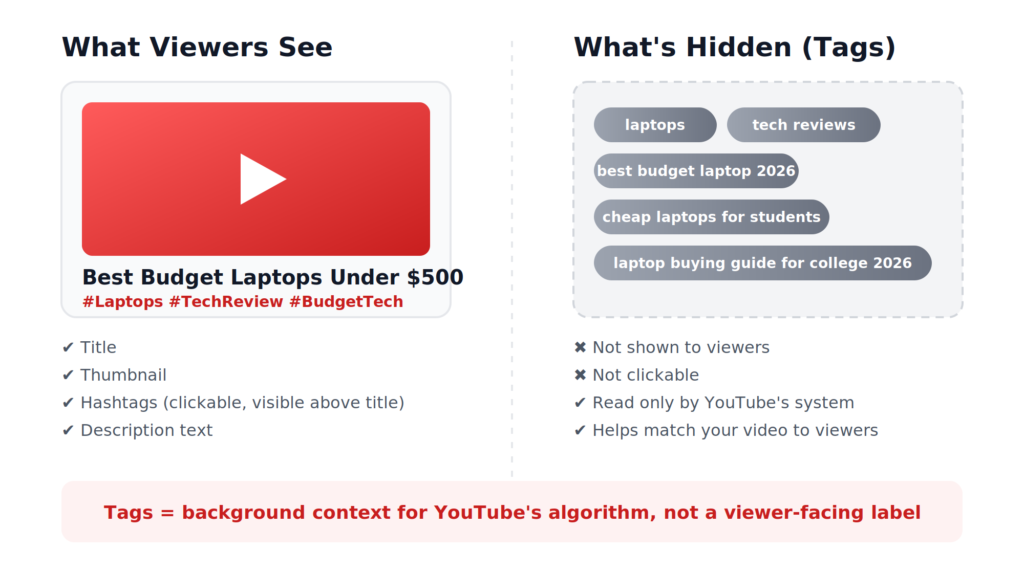
YouTube tags are hidden keywords you attach to a video behind the scenes. Viewers never see them — they exist purely to give YouTube’s system extra context about what your video is actually about. Think of them as a quiet hint whispered to the algorithm, not a headline shown to your audience.
That’s an important distinction, because tags are often confused with hashtags (the clickable # labels that do appear publicly above your title) and with keywords in general (the actual words people type into a search bar). Tags are just one piece of a bigger SEO puzzle.
Do YouTube Tags Still Matter in 2026?
Short answer: yes, but as a supporting player, not the star. YouTube has said publicly that your title, thumbnail, and watch time carry far more weight than tags. So why bother?
Tags earn their keep in two specific situations:
- Newer channels with limited watch history, where YouTube’s system needs extra signals to figure out who to show your video to.
- Niche, technical, or easily-misspelled topics, where a tag can clear up ambiguity that your title alone might not.
So if you’re a brand-new channel or covering a specific niche, tags are genuinely worth a few minutes of your time per upload.
How to Add Tags to a New Video Upload
Here’s the process, step by step:
- Sign in to YouTube Studio and click the camera icon in the top-right corner, then select Upload videos.
- Choose your video file and let it upload.
- On the Details screen, scroll down past the title and description.
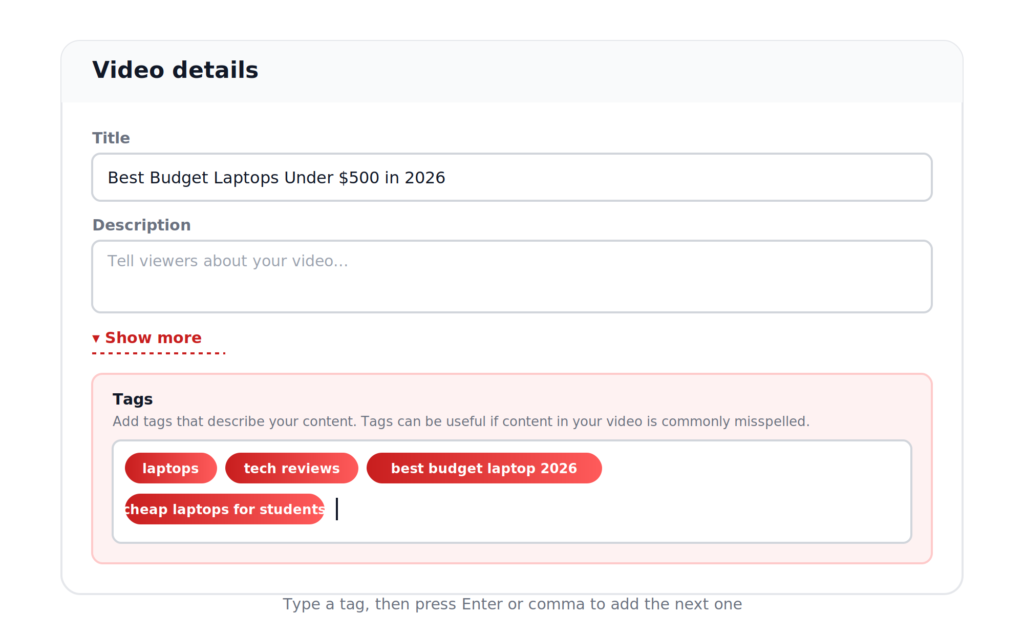
- Click Show more near the bottom of that section — this expands additional fields, including Tags.
- In the Tags box, type a tag and press Enter or comma after each one to add it. Keep going until you’ve added a well-rounded set (more on how many below).
- Continue through the rest of the upload flow (visibility, monetization, etc.) as usual, and publish.
That’s it — tags save automatically as part of your video’s details once you publish or save as draft.
How to Edit Tags on an Already-Published Video
Forgot to add tags, or want to update them on an older video? No problem:
- Go to YouTube Studio → Content in the left sidebar.
- Find the video you want to edit and click its thumbnail (or the pencil/edit icon).
- You’ll land on the same Details screen as during upload.
- Click Show more, then scroll to the Tags field.
- Add new tags or remove outdated ones the same way — type and press Enter/comma.
- Click Save in the top-right corner.
Changes to tags on published videos take effect quickly, though it may take a little time for YouTube’s system to fully re-index the video with the new information.
How Many Tags Should You Actually Add? (Youtube Me Tags Kaise Lagaye)
This is where most creators either do too little (one or two vague tags) or too much (30 unrelated tags crammed in hoping something sticks). Neither works well.
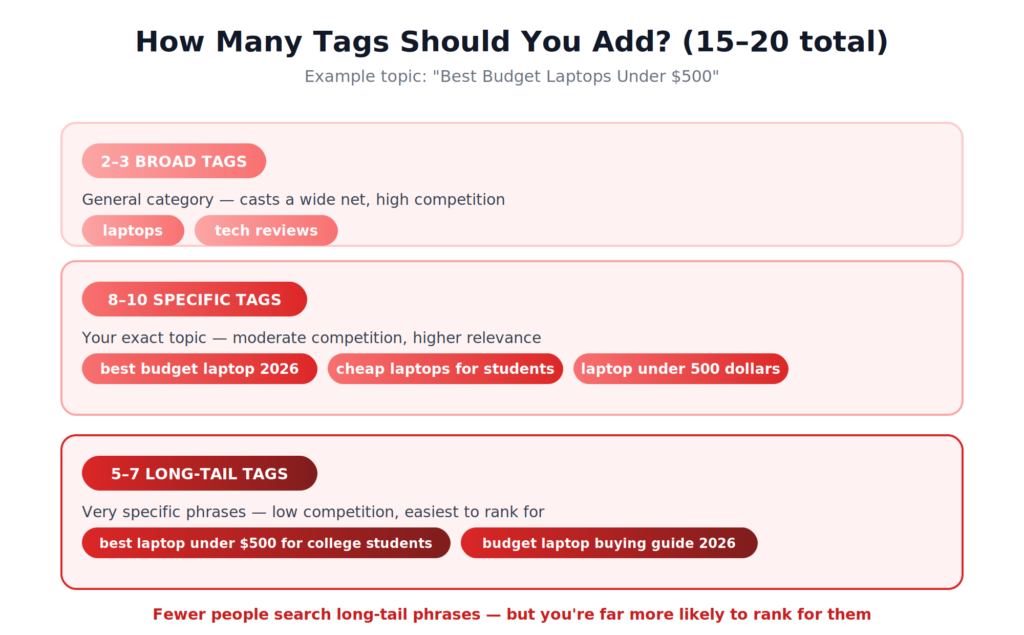
A solid approach is 15–20 tags per video, mixing three types:
- 2–3 broad tags describing your general category (e.g.,
personal finance,travel vlog) - 8–10 specific tags naming your exact topic (e.g.,
how to save money on a tight budget) - 5–7 long-tail tags that are very precise phrases (e.g.,
budgeting tips for college students 2026)
Keep in mind YouTube gives you roughly 500 characters total across all tags combined — not a fixed tag count. Once you hit that limit, extra tags are simply ignored, so it pays to be intentional rather than exhaustive.
Common Mistakes to Avoid
- Copying a competitor’s exact tags word-for-word. Your tags should reflect your video’s actual content, not someone else’s.
- Using unrelated trending tags to try to “hack” visibility. This can actually hurt you, since it confuses YouTube’s matching system.
- Repeating the same one or two words in every tag instead of using genuine variations.
- Skipping tags entirely on a brand-new channel, where they’d actually be the most useful.
A Faster Way to Build Your Tag List
Writing out 15–20 thoughtful, non-repetitive tags for every single video adds up fast if you upload regularly. This is exactly the kind of task that’s easy to speed up with AI — you provide your topic, title, or description, and get a complete, ready-to-paste tag set in seconds instead of brainstorming from scratch each time.
If you’d like to try this, our free AI YouTube SEO Generator creates exactly 20 relevant tags per video (plus hashtags and title ideas) based on your actual content — no login required.
Final Thoughts
Adding tags on YouTube takes less than a minute once you know where to look — the real work is choosing tags that actually reflect your content instead of guessing. Focus on relevance over volume, mix broad and specific phrases, and you’ll give your videos exactly the kind of context that helps YouTube’s system (and your viewers) find them.
Frequently Asked Questions
Do YouTube tags help with search ranking?
They help in a supporting role, mainly for newer or niche channels. Title, thumbnail, and watch time matter more, but well-chosen tags still add useful context.
Can I add tags after publishing a video?
Yes. Go to YouTube Studio → Content, open the video, expand “Show more,” and edit the Tags field, then save.
Is there a limit to how many tags I can add?
There’s no fixed number, but all your tags combined can’t exceed about 500 characters. Extra tags beyond that limit are ignored.
Should tags match my video title exactly?
Your most important tag should relate closely to your title, but the rest should include variations and related phrases — not just repeats of the same words.